How to Reduce Image File Size Without Losing Quality (2026)
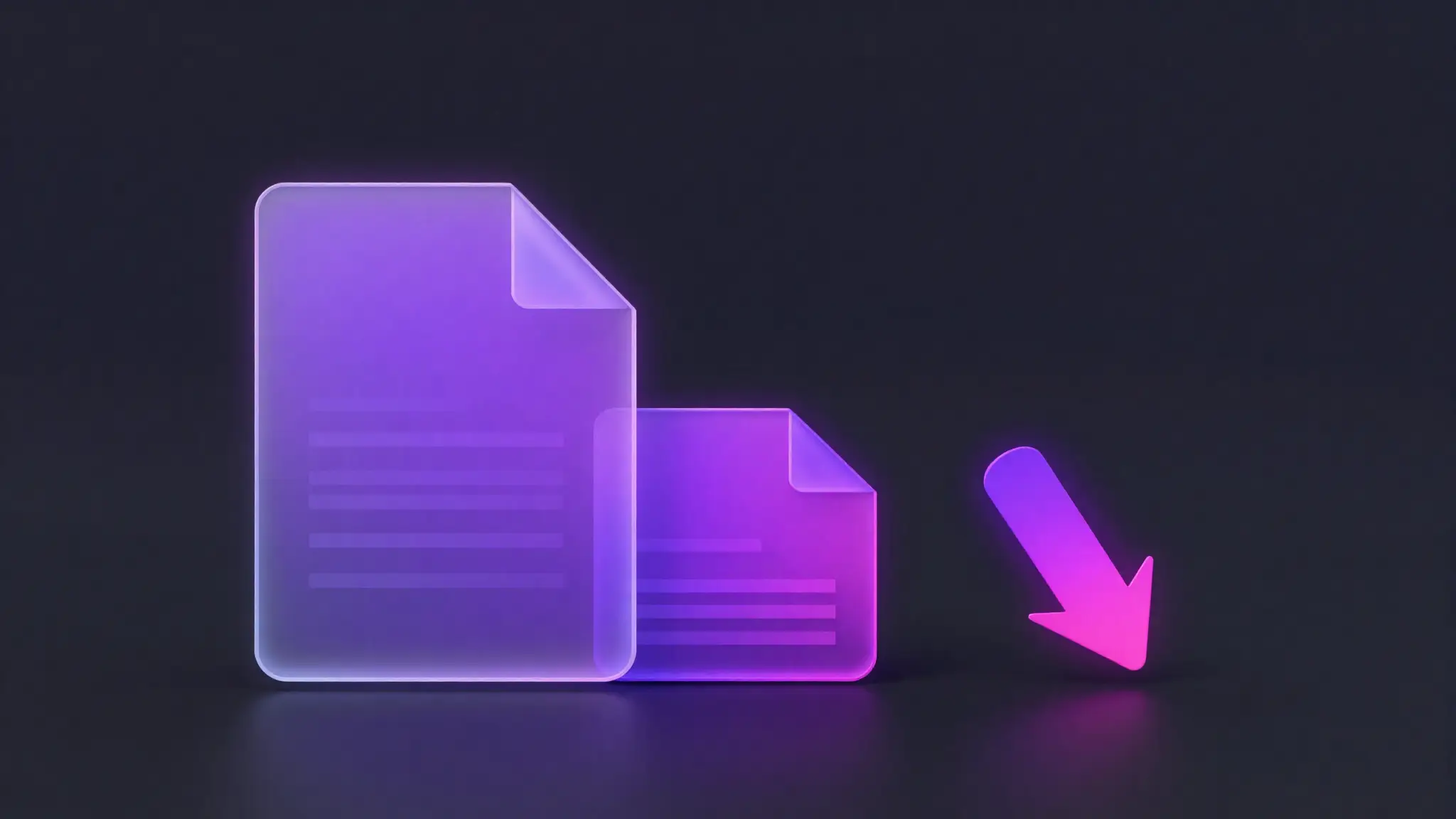
TL;DR: You almost never need a 6 MB photo. To shrink an image without losing visible quality, do two things in order: resize the longest side to the dimensions you actually need, then compress with the quality slider around 80%. That combination turns multi-megabyte photos into a few hundred kilobytes that still look identical on screen. Use JPEG or WebP for photos, keep PNG only for logos and screenshots, and do it all in your browser so the file never gets uploaded anywhere.
Big image files slow down websites, bounce off email size limits, and take forever to send on a weak connection. The good news is that most of that weight is invisible: your eye simply can't see the difference between a 6 MB photo and a smart 300 KB version. This guide explains exactly why images get so large and how to cut them down — with no visible loss — in a few clicks.
Why are images so large in the first place?
A modern phone camera captures somewhere between 12 and 48 megapixels. A single 12 MP photo is 4000 × 3000 pixels — that's 12 million colored dots, each storing red, green and blue values. Stored raw, that's tens of megabytes. Even after the camera's built-in compression, you typically end up with a 3–8 MB JPEG.
The problem is that this much detail is wasteful for almost everything you do with the photo. A phone screen is roughly 1200 pixels wide. A story or post displays at around 1080 pixels. An email client might show the image at 600 pixels. In every one of those cases you are shipping 4000 pixels of width when only a quarter of them will ever be seen. The rest is pure dead weight — bandwidth, storage and load time spent on pixels nobody looks at.
Compress vs resize: the two levers you control
People use "make it smaller" to mean two completely different operations. Understanding the difference is the whole game.
| Operation | What it changes | Visible quality | Typical saving |
|---|---|---|---|
| Resize | Pixel dimensions (e.g. 4000 → 1600 px wide) | None, if target ≥ display size | Huge (often 80%+) |
| Compress | How efficiently the same pixels are stored | None to slight, depending on quality % | Large (50–70%) |
Resizing reduces the number of pixels. If you'll only ever display the image at 1600 pixels wide, shrinking a 4000-pixel original down to 1600 throws away nothing you could have seen — and it cuts the file dramatically because you've removed roughly 84% of the pixels.
Compressing keeps the dimensions but stores those pixels more cleverly. The rule of thumb: resize first, then compress. Resizing does the heavy lifting; compression cleans up what's left. Doing both is how a 6 MB photo becomes 250 KB.
Lossy vs lossless: where the "quality" actually goes
There are two families of compression, and knowing which you're using tells you whether quality is at risk at all.
Lossless compression
Lossless compression (used by PNG, and an option in WebP) repacks the file so it takes less space but rebuilds every pixel exactly. Decompress it and you get a byte-for-byte identical image. There is literally zero quality loss — the catch is that the savings are modest, usually 10–40%, because you can only squeeze out genuine redundancy.
Lossy compression
Lossy compression (JPEG, and the default mode of WebP) is far more aggressive. It permanently discards information — but it's clever about which information. It throws away the fine color and detail variations that human vision is least sensitive to, while preserving the structure and edges your eye actually notices. At sensible settings the discarded data is invisible, yet the file shrinks by 60–90%. This is why lossy is the right default for photographs.
The key insight: "without losing quality" doesn't mean "without losing data." It means without losing visible quality. Lossy compression at a good setting removes only what you were never going to see.
The quality slider, explained
Every JPEG/WebP exporter has a quality control from 0 to 100. It is not a percentage of how good the image looks — it's how much detail to keep. Here's how to read it:
| Quality setting | Result | Use it for |
|---|---|---|
| 90–100 | Near-perfect, large files. Diminishing returns. | Archiving, print, photography portfolios |
| 78–88 | The sweet spot. No visible loss, big savings. | Almost everything: web, social, email |
| 60–77 | Slight softening on close inspection. Tiny files. | Thumbnails, backgrounds, low-priority images |
| Below 60 | Visible blocky artifacts, especially on edges. | Avoid for anything that matters |
The crucial point is that the relationship between quality and file size is not linear. Going from 100 to 85 might cut the file in half while looking identical. Going from 85 to 80 saves a little more for almost no visible change. But going from 60 to 50 produces an ugly result for a relatively small extra saving. That's why 80% is the magic number for most work — you've captured nearly all of the savings before quality starts to suffer.
From MB to KB: targets for messaging, email and web
Different destinations have different needs. Here's what to aim for, and why.
Messaging (WhatsApp, Telegram, iMessage)
Messaging apps already re-compress images you send, often badly. Send them a clean, pre-resized file at ~1280 px and 80% quality (roughly 150–300 KB) and the app has less to mangle — your recipient gets a sharper result and it sends instantly even on mobile data.
Email attachments
Most email providers cap attachments at 20–25 MB, but the real problem is the recipient's inbox and how the image displays inline. Aim for under 500 KB per image, and well under that if you're attaching several. At 800–1000 px wide and 80% quality, a photo lands comfortably under 200 KB.
Websites and blogs
This is where size matters most: every kilobyte directly affects page load speed, which affects both bounce rate and SEO. Target 100–300 KB for content images and under 100 KB for thumbnails. Resize to your layout's actual display width (often 1600–2000 px for full-width, less for in-column images) and export as WebP if you can, JPEG otherwise.
Recommended dimensions by use case
Resizing to the right dimensions is the single biggest lever. Match the longest side to where the image will live:
| Use case | Recommended longest side | Target file size |
|---|---|---|
| Profile picture / avatar | 400–800 px | < 80 KB |
| Social feed post | 1080 px | 100–250 KB |
| Story / vertical (9:16) | 1080 × 1920 px | 150–350 KB |
| Email attachment | 800–1000 px | < 200 KB |
| Blog / web content image | 1600–2000 px | 100–300 KB |
| Full-screen hero / banner | 2400 px | 200–500 KB |
| High-quality print | Keep original | Don't compress hard |
When in doubt, a single 1600 px wide JPEG at 80% quality is a sensible all-rounder that works for the web, email and most social platforms.
Step-by-step: shrink a photo without losing quality
The full workflow takes under a minute:
- Start from the highest-quality original you have. Never re-compress a file that's already been compressed twice — each pass loses a little more. Work from the source.
- Decide where it's going and pick a target width from the table above.
- Resize first. Reduce the longest side to your target. This alone often cuts 70–85% of the file.
- Choose the format. Photo → WebP or JPEG. Logo, icon, screenshot or anything with transparency → PNG.
- Compress at ~80% quality. Start at 80 and only adjust if the preview shows a problem.
- Compare before and after. A good tool shows you the original vs. new file size and a preview. If you can't see a difference, you're done.
- Save and ship. Keep the original somewhere safe in case you need a larger version later.
How to keep quality looking good
- Don't compress the same image twice. Re-saving a JPEG repeatedly stacks artifacts. Always re-export from your original, not from a previous export.
- Use the right format for the content. JPEG on a logo with sharp edges produces fuzzy halos; PNG on a photograph produces a giant file. Photos → JPEG/WebP, graphics → PNG.
- Resize down, never up. Enlarging a small image past its native size just adds blur — there's no detail to invent.
- Watch the edges and text. Compression artifacts show up first around hard edges, fine text and flat color areas. If those look clean, the rest is fine.
- Prefer WebP in 2026. It's now supported everywhere and routinely produces files 25–35% smaller than JPEG at the same visible quality.
Privacy: do it in your browser, not on a server
Many "free image compressor" sites work by uploading your photos to their servers, processing them there, and sending the result back. For a meme that's fine. For a passport scan, a contract, a screenshot of a private chat, or a personal photo, it means handing your file to a third party you don't control — and you have no guarantee about how long they keep it.
The safer approach is a tool that does everything locally in your browser. Modern browsers can resize and compress images entirely on your own device using the same engine that renders images, so the file never leaves your computer or phone. There's no upload, no server copy, and nothing to leak. That's exactly how StalkStory's compressor works — your images stay on your device from start to finish. If you handle anything sensitive, only use in-browser tools and check that the page isn't uploading your file.
📊 The short version
Resize first, then compress. Resizing removes pixels you'll never see; compression cleans up the rest.
80% quality is the sweet spot — virtually no visible loss, most of the file-size savings captured.
Match dimensions to the destination: ~1080 px for social, 1600–2000 px for web, 800 px for email.
WebP or JPEG for photos, PNG for graphics.
Keep it in-browser so your files never get uploaded anywhere.
Shrink any photo in seconds — free and private. Resize, compress and download without your images ever leaving your device.
Compress your photos free here →Frequently asked questions
Can you really reduce image size without losing quality?
Yes — without losing visible quality. Lossless compression changes zero pixels, and lossy compression at 78–88% quality only removes detail your eye can't detect. On a typical photo you can save 60–80% of the file size and still not see a difference.
What's the difference between compressing and resizing an image?
Resizing changes the pixel dimensions (e.g. 4000 px → 1600 px wide). Compressing keeps the dimensions but stores the same pixels more efficiently. Resizing saves much more space, so the best workflow is to resize first to a sensible width, then compress.
How do I get an image from MB to KB?
Resize the longest side to what you actually need (1600–2000 px for web, 1080 px for social, 800 px for email), then export as JPEG or WebP at about 80% quality. A 6 MB phone photo usually drops to 150–400 KB this way with no visible loss.
Which format is best for small file size — JPEG, PNG or WebP?
WebP is usually smallest and works in every modern browser and app in 2026. JPEG is the safe universal choice for photos. PNG is best only for graphics, logos and screenshots with sharp edges or transparency — for photos it produces much larger files.
Is it safe to compress photos online?
It's safe when the tool processes images in your browser instead of uploading them. StalkStory's compressor runs entirely on your device, so your photos never leave your computer or phone — there's nothing to leak. Avoid any tool that requires an upload for sensitive images.